The free app, step by step

How Komplet works

A tour of the free app in the order you meet it: from the first invoice you drop in to the month you hand to your accountant. Everything on this page works today, on your Mac.

FreeMac onlyEnglish and PolishNo account

  1. You drop in an invoice
  2. Komplet reads it and files it in its month
  3. Your bank statement pairs it with the payment
  4. The month goes to your accountant in one ZIP
On this page
  1. 1Get started
  2. 2The Inbox
  3. 3Filing
  4. 4The month page
  5. 5Bank statements
  6. 6Taxes and deadlines
  7. 7Suppliers and rates
  8. 8To-dos
  9. 9For your accountant
  10. 10Privacy
  11. 11Language and look
  12. Using inFakt?
  13. Questions
Getting started

Step 1: Install it, name your company, choose your folder.

Get Komplet on the Mac App Store. It is free.

When it opens, choose Start with my documents. Komplet asks for your company’s name, and its NIP if you like: the NIP helps it tell your own invoices apart from your suppliers’. There is nothing to sign up for.

Then show Komplet where your documents live. Already have folders full of invoices? Point it at the whole tree, one year or a single month, and it reads what is there. Starting from nothing? Choose an empty folder, and the months appear as documents arrive.

  • Your folders can be on your Mac, in iCloud Drive, or in a Google Drive folder synced to your Mac
  • Files you already have keep their names and stay where they are
  • Old scans are read too, on your Mac
  • Change the folder later in Settings
The Inbox

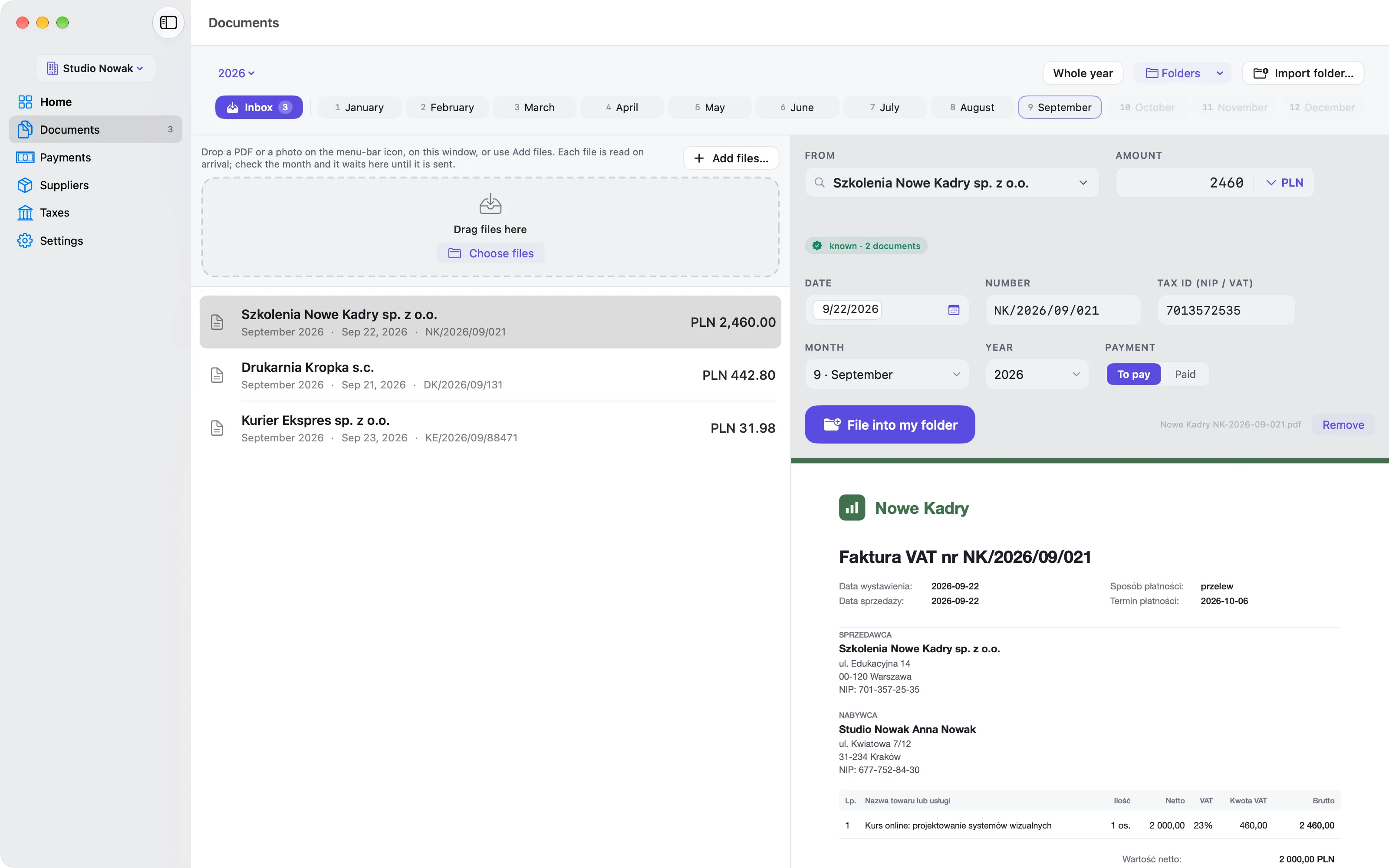
Step 2: Drop in a document. Komplet reads it for you.

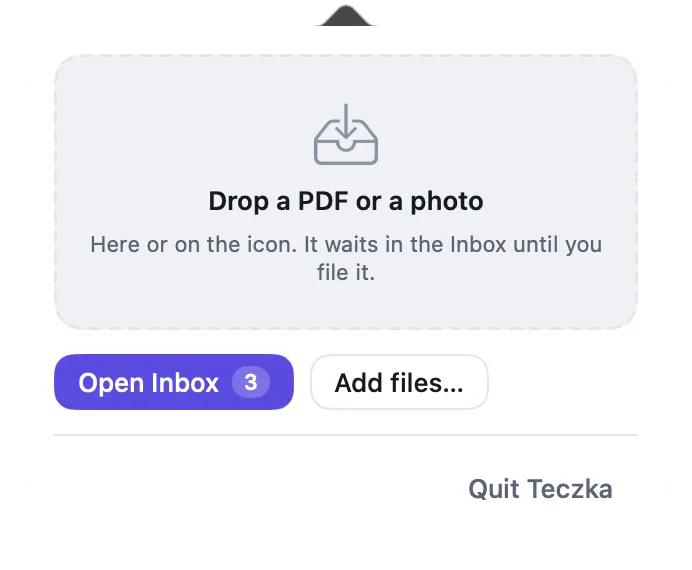
Invoices and receipts start in the Inbox. Drag a PDF or a photo onto the Komplet icon in the menu bar, onto the Komplet window, or press ⌘O and choose files. The menu-bar icon works with the window closed: click it for a drop zone, or drag a file straight onto it.

Komplet reads the seller, NIP, invoice number, date, amount and currency, and suggests the month the document belongs to. A PDF with text is read as it is; a scan or a photo goes through Apple’s text recognition on your Mac. Polish and English documents both work.

You check; you don’t retype. Every field can be changed before you file, and when something could not be read, the Inbox says so plainly instead of guessing. Mark the document Paid or To pay, and it waits there until you are ready.

  • The same file twice? Komplet tells you it is already there
  • A seller from your earlier documents is recognised, so there is nothing to type
  • An amount in euro or dollars shows its value in złoty, at the NBP rate
  • Nothing leaves your Mac to be read
Komplet’s inbox: an invoice with the seller, NIP, number, date and amount read from it, ready to file.
The panel under Komplet’s menu-bar icon: drop a PDF or a photo here or on the icon, open the Inbox, or add files.
Filing

Step 3: Filed in the right month, under a name you can read.

When the fields look right, choose Add. Komplet copies the document into your folder tree, into its year and its month, and names it by date, seller and number. An invoice from Chmura Hosting dated 15 September 2026 lands here:

2026 › 09-September2026-09-15 Chmura Hosting FV-118.pdf

Month folders you already have keep their names, whatever you called them. The slash in an invoice number becomes a dash, because a file name cannot hold one, and if two documents would share a name, the second gets a number instead of replacing the first.

  • The document shows on its month’s page straight away
  • Its paid or to-pay mark comes with it
  • Folders of your own, like a folder for contracts, are left as they are
  • Remove Komplet and every file stays exactly where it is
The month page

Step 4: Every month on one page.

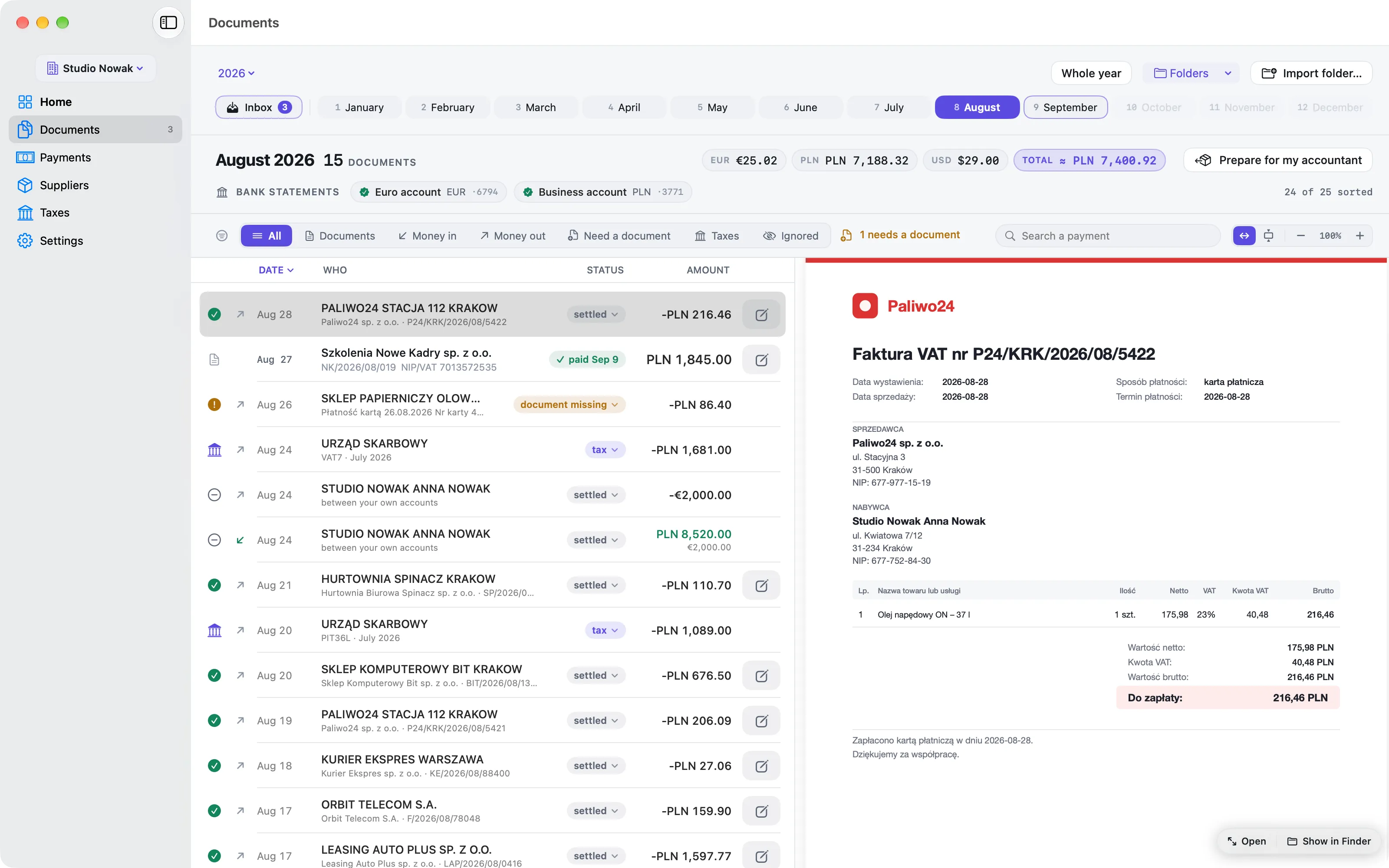
Documents opens the month you are in. Payments and documents sit in one list, newest first: a payment shows the document that explains it, and a document nothing has paid for yet stands on its own. The month’s totals sit at the top, per currency.

The year rail shows twelve months side by side, with a bar for how much each one holds. A month that has passed with nothing filed is marked, so a gap is hard to miss.

Click a row to see the document beside the list. A PDF shows at the width of the page or as a whole page, zoomed as you like. Open shows it large inside Komplet, and Show in Finder takes you to the file.

  • Filters: all, need a document, taxes, ignored
  • Search by seller, transfer title, document number or amount
  • One chip per bank account above the list, for the month’s statement
  • “Prepare for my accountant” in the month’s header
A month in Komplet: every payment next to the document that explains it, with a preview of the invoice.
Bank accounts and statements

Step 5: Add the statement. Payments find their documents.

Start in Settings → Bank accounts and add each business account by its IBAN or its 26-digit account number; Komplet checks that the number is a valid one. From then on, every month shows a chip per account, grey with a plus until that month’s statement is in.

Click the chip and choose the statement PDF. Komplet reads every line, checks that the statement’s own totals add up, and files the PDF into its month folder. A statement for another month goes to that month, and Komplet tells you where. A statement from an account you have not added is refused, so two accounts never get mixed up. Statements already in your folders are read without asking.

  • PDF statements from any bank, in Polish or English
  • Komplet never logs in to your bank: you add the file
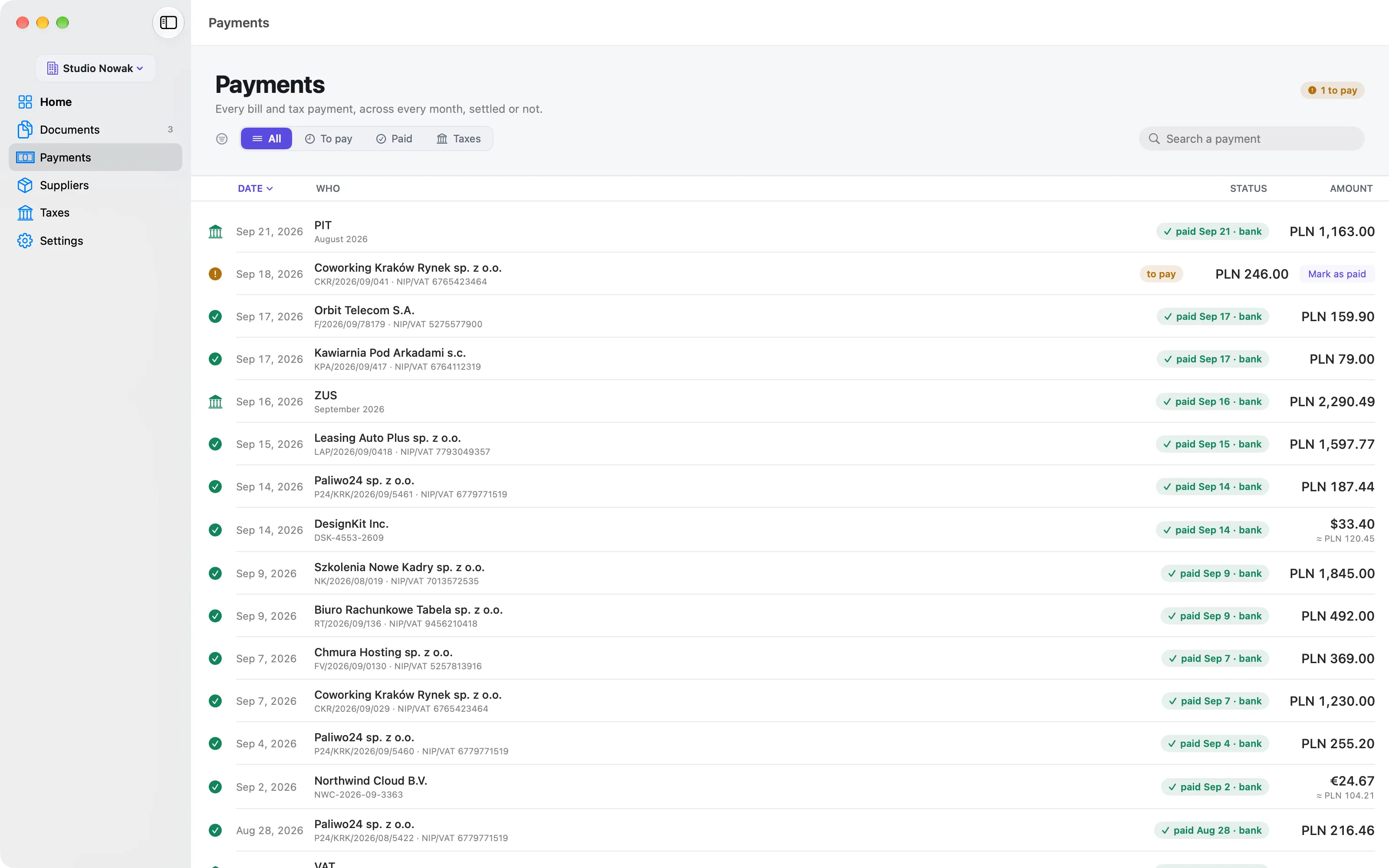
  • The Payments screen lists every bill and tax payment across all months: paid, to pay, and when
  • An invoice paid the month after still shows as paid on its own month
Komplet’s payments list: cost documents and tax payments across months, paid ones in green.

How pairing works, in plain words

For each payment, Komplet looks for the document that explains it: first the invoice number together with the amount, then the seller’s NIP with the amount, then a seller name that looks alike, always close to the payment date. A euro invoice paid by card in złoty is compared in euro.

Each document explains one payment. When two fit equally well, the line says needs a look and you choose. Transfers between your own accounts, bank fees, money coming in and tax payments need no document, and Komplet recognises them. Whatever still lacks a document shows in amber.

When you know better

Every line has a menu. Link a document… opens a short list, same amount first and then the nearest dates, with a search. A link you make by hand is never overruled, and you can remove it at any time.

Ignore this line for a line that needs nothing, Never need a document from this seller for a seller that never sends one, or Add the document… when it is still sitting in your email.

Taxes, ZUS and deadlines

Step 6: Your tax and ZUS payments, read from your statements.

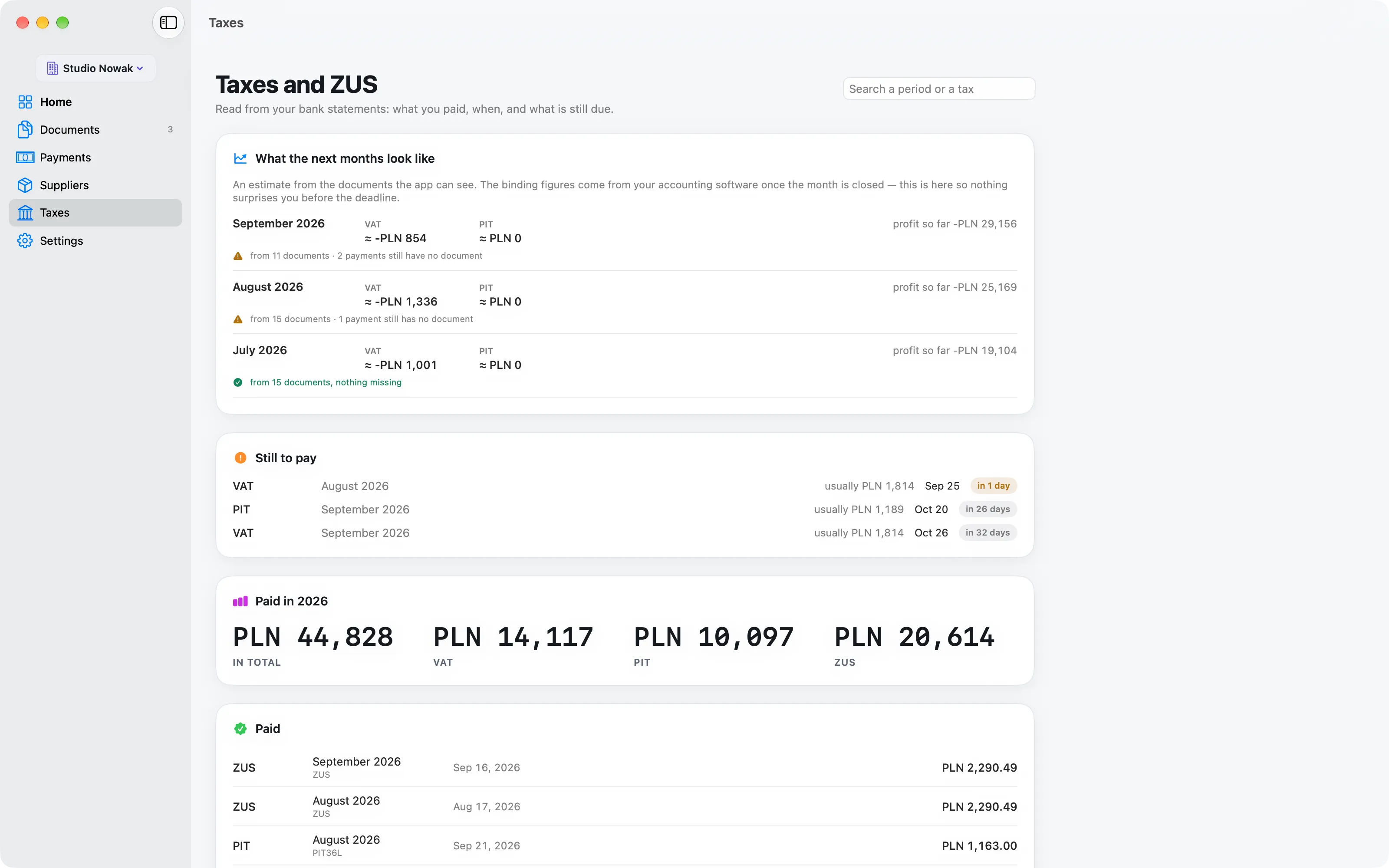
Once a statement is in, Komplet picks out the transfers to your tax micro-account (mikrorachunek podatkowy, the personal account number you pay tax into) and to ZUS, the social insurance office. It reads the tax and the period from the transfer itself.

The Taxes screen groups them by tax and by period: what you paid and when, what is still open, and a total for the year. A payment is called late only when a statement proves it; if no statement covers the month it was due, Komplet says so instead of guessing. Interest is shown apart from the tax.

Home lists the deadlines coming up: ZUS, the income tax advance, VAT, the annual return, and the day your accountant wants the month’s documents. A deadline that falls on a weekend or a Polish public holiday moves to the next working day. Switch off the ones that don’t apply to you in Settings.

  • Tax micro-account and ZUS transfers recognised on their own
  • Grouped by tax and period, with the date paid
  • An open period shows what it usually costs
  • Deadlines skip weekends and Polish public holidays
Komplet’s taxes screen: ZUS and income tax payments grouped by period, with the dates they were paid.
Suppliers and exchange rates

Step 7: Who you pay, and how much, in złoty.

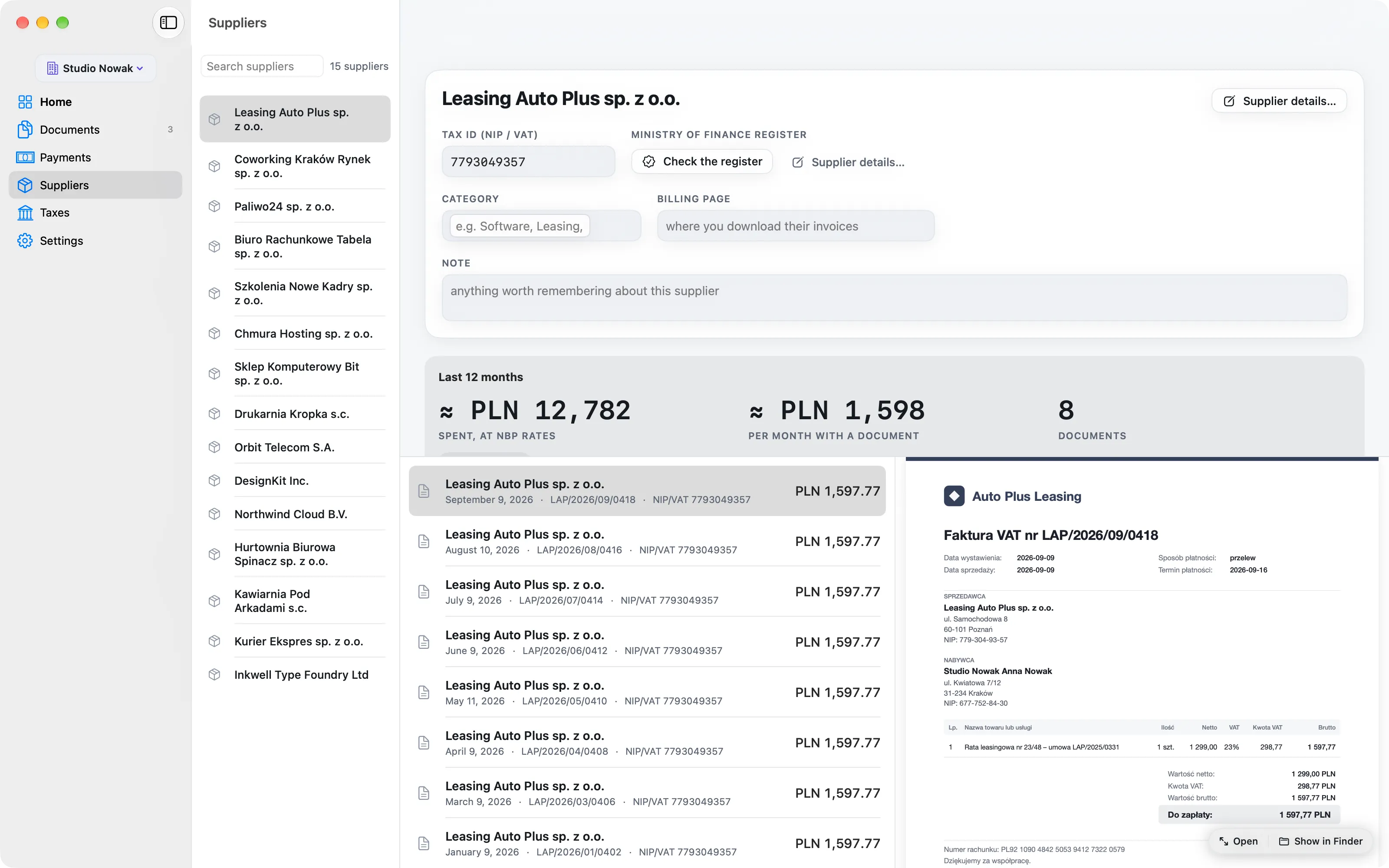
Suppliers fill in by themselves as documents are read. The list is ranked by what you spent with each one over the last twelve months, with a chart by month and every document they sent, ready to preview.

Add what helps: a category, the page where you download their invoices, a note. Rename a supplier and Komplet keeps your name. Two entries for the same company can be merged into one.

An invoice in euro, dollars or another currency the NBP publishes shows its value in złoty, at the National Bank of Poland’s rate from the last working day before the document’s date. Month totals and supplier spending add them up for you. Komplet asks the NBP’s free public service for a currency and a date, and nothing else.

  • Ranked by twelve months of spending
  • Category, billing page and a note for each supplier
  • ≈ zł under every foreign amount
  • A guide to what things cost: the figures in your books are your accountant’s
Komplet’s suppliers, ranked by what you spent with them over the last twelve months.
To-dos

Step 8: A to-do list that keeps the paper it’s about.

Home has a short to-do list for the things paperwork leaves behind: ask for a corrected invoice, send the car insurance policy to your accountant. Type it, press Return, and it is there.

Give a to-do a date and a note if you like, and attach what it is about: a document you have already filed, or any file up to 25 MB, kept with the to-do. Dropping a file on a to-do attaches it. Open to-dos come first, by date, and done ones move to the bottom.

For your accountant

Step 9: The month, ready for your accountant in one ZIP.

On any month, choose Prepare for my accountant and pick where the package should go; Komplet remembers the place for next time. It builds a folder, and a ZIP of that folder, with everything the month holds.

Send to my accountant… opens the Mac’s share sheet with the ZIP: Mail (a large file becomes an iCloud download link), Messages, AirDrop, or a link to copy when the package sits in iCloud Drive. Your accountant needs nothing installed.

  • Every document of the month, named by date, seller and number
  • A Statements folder with the month’s bank statements
  • Summary.pdf to read
  • Summary.csv, which opens correctly in Polish Excel and in Numbers
2026-08 Studio Nowak
  • Statements
  • 2026-08-02 Chmura Hosting FV-2026-08-118.pdf
  • 2026-08-05 Orbit Telecom 08-2026-4471.pdf
  • 2026-08-09 Coworking Kraków Rynek 91-08-2026.pdf
  • 2026-08-14 DesignKit Inc. INV-20931.pdf
  • 2026-08-21 Paliwo24 FS-8812.pdf
  • Summary.pdf
  • Summary.csv
2026-08 Studio Nowak.zipready to send
your accountant gets this
Privacy

Step 10: Read on your Mac. Kept in your folders.

Your invoices say a lot about your business. Komplet reads them where they already are, and no document is uploaded to be read or stored. There is no Komplet account and no Komplet server.

Read on your Mac

Text comes from the PDF, or from Apple’s text recognition running on your Mac for scans and photos.

Kept where you choose

Documents live in your folders. Komplet keeps an index of them on your Mac, never the only copy.

Your own iCloud

With two Macs, Komplet keeps them in step through your iCloud account, not through a server of ours.

Language and appearance

Step 11: In English or Polish, light or dark.

Komplet speaks English and Polish; switch in Settings whenever you like. It reads Polish and English documents whichever you choose, so a Polish invoice is no harder to file in English.

It follows your Mac’s light or dark appearance, or you can pick one. The accent colour is yours too: violet, blue, teal, plum, copper or graphite. Colour always means something: green is settled, amber needs a look, red is a problem.

What Komplet leaves to others

Komplet gets your documents ready. It does not:

  • keep the books or work out your tax
  • file tax returns or pay taxes for you
  • send invoices to KSeF by itself
  • log in to your bank: statements come in as PDFs you add

Your accountant, or your accounting service, does the accounting. Komplet makes sure they have everything.

Connect · 29 zł a month, VAT included

Using inFakt or KSeF? Connect connects it.

Everything above is free. When you want Komplet to connect and automate, Connect sends cost documents from the Inbox straight to inFakt through inFakt’s official API, with the paid status and a note. Your API key stays in your Mac’s Keychain. You also see the invoices that reached you through KSeF, and which are not in your costs yet, once inFakt’s KSeF integration is switched on. A wFirma connection and more automation are coming.

Questions

What people ask about how it works.

Something else? Write to us.

Do I have to use every part of Komplet?
No. Many people start with the Inbox, filing and the month package, and add bank statements later. Each part works on its own, and nothing breaks if you never open the Taxes screen.
What happens to the folders I already have?
Komplet reads them and leaves every file where it is, under its own name. Only the documents you file from the Inbox are named by Komplet, and new ones go into the month folders you already use.
Is Komplet useful without bank statements?
Yes. Reading and filing documents, the month page, suppliers, deadlines, to-dos and the month package all work without a statement. Pairing payments with documents and the Taxes screen need a statement: a PDF statement from any bank.
What if Komplet reads something wrong?
Nothing is filed until you choose to file it, and every field in the Inbox can be changed first. If a payment is paired with the wrong document, remove the link and choose the right one: Komplet never overrules a link you made.
Can I use Komplet on two Macs?
Yes. Sign in to the same iCloud account on both and Komplet keeps its information in step between them. Your documents live in your own folders, so keep those in iCloud Drive or Google Drive if you want the files on both Macs too.
Does Komplet send anything to my accountant or the tax office by itself?
No. Komplet prepares the month; you decide when to send it, and to whom. It does not keep the books, file returns, pay taxes or send anything to KSeF. With Connect and inFakt connected, a document goes to inFakt only when you choose to send it.

Close every month without the hunt.

Drop documents in as they arrive. Komplet files them, checks them against your bank statement and tells you what is still missing. Free, for your Mac.

Mac only